Instagram Live: the complete 2026 guide (requirements, guests, scheduling and 10 ideas)
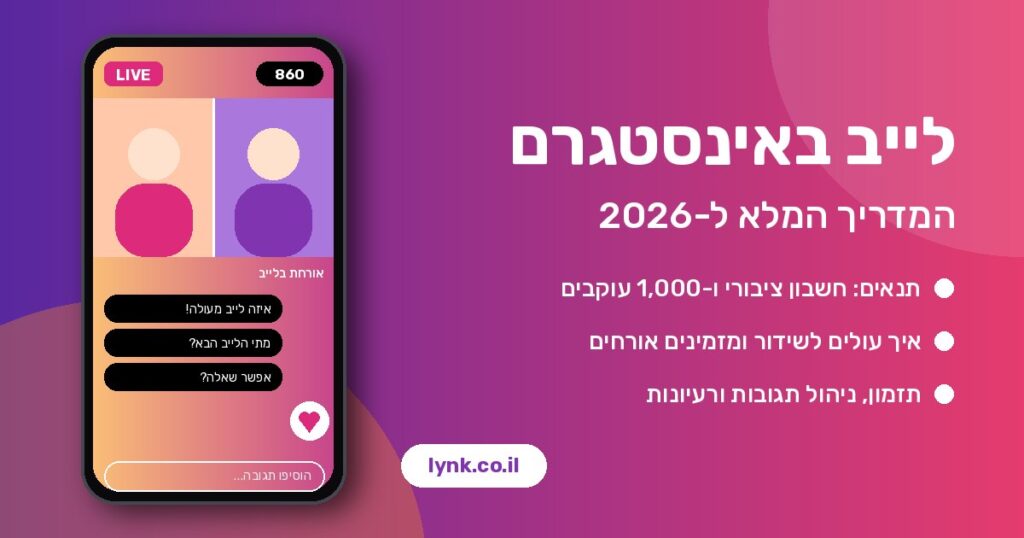
Instagram Live is live video streamed from inside the app: your followers watch you in real time, comment, send hearts and can even join your broadcast. To start a Live in 2026 you need a public account with at least 1,000 followers. For businesses, creators and small brands it’s one of the most effective ways to build trust: no editing, no “perfect post” filter, just a real conversation with people who chose to stay. This guide explains the requirements, how to go live from your phone or computer, how to invite guests and schedule a Live in advance, how to manage comments and what actually brings more viewers.
What Instagram Live is and how it differs from Stories and Reels
Stories and Reels are recorded content: you shoot, edit and upload. Live is the opposite. You’re on air now, viewers see what’s happening at this moment, and every question in the chat can get an answer within seconds. That’s why a live broadcast feels more personal and builds a connection faster than any edited content.
When you start a broadcast, your followers may get a notification, and your profile circle appears in the stories row with a LIVE label. After the broadcast ends you can share it as a replay or keep it in your archive. If you’re still building the basics of your stories, read our complete guide to Instagram Stories too, since most Live promotion happens through Stories.
What you can do on Instagram Live:
- Talk to your audience in real time and answer questions from the comments.
- Invite up to three guests to a shared broadcast.
- Schedule a Live in advance so people can sign up for a reminder.
- Manage comments: filter them, turn them off or appoint a moderator to help you.
- Save the broadcast and turn it into more content after it ends.
Who can go live on Instagram: the 2026 requirements
Instagram changed the rules in 2025. Until then any user could start a broadcast, but according to Instagram’s official Help Center, today only users with a public account and 1,000 or more followers can start a Live. The change was first reported by TechCrunch, and users who don’t meet the requirements see a message that their account is no longer eligible to go live.
The main requirements:
- A public account. A private account can’t start a Live, even with thousands of followers.
- At least 1,000 followers. That’s the threshold Instagram states, with no regional exceptions.
- Teen Accounts: the ability to go live is off by default. Teens under 16 need a parent’s or guardian’s permission, and teens aged 16 to 17 can turn it on themselves.
- An account in good standing. Instagram says an account that previously posted content removed for going against the Community Standards, or a very new account, may not be able to go live. You can check this under “Account Status” in your settings.
I don’t have 1,000 followers. Can I still take part in a Live?
Yes. Even if you can’t start your own broadcast, you can join another account’s Live as a guest, as long as you follow them and they invite you. It’s a great way to reach a new audience before you hit the threshold. Meanwhile, it’s worth working on growing your audience: we have a guide on how to get Instagram followers for free, and if you want to reach 1,000 faster you can look at Lynk Media’s Instagram followers service. One thing to understand: bought followers help with social proof and with the number itself, but they don’t guarantee viewers on your Live. Viewers come from good content and a real audience waiting for your broadcast.
How to go live on Instagram from your phone, step by step
- Open Instagram and tap the create button (+), or swipe right from anywhere in your feed.
- At the bottom of the screen, scroll through the options to Live.
- Add a title for the broadcast. A clear title like “Hair care Q&A” helps people decide whether to join.
- Choose an audience: Public broadcasts to your followers, and Practice lets you test lighting, sound and angle without anyone seeing.
- Tap the live button. Instagram shows a short countdown, and you’re on air.
- To finish, tap the X in the corner and confirm that you want to end the broadcast. You can then share a replay or leave it in your archive.
A small tip: always do a few minutes in Practice mode before an important Live. Most failed Lives fail because of poor sound or a weak internet connection, not the content.
Going live on Instagram from a computer: Live Producer and streaming software
You can also broadcast from a computer, through Live Producer on Instagram’s website. Go to Instagram.com, click “Create”, choose “Live”, fill in a title and audience, and you’ll get a stream URL and a stream key. Enter both in streaming software like OBS under Custom RTMP. This suits businesses that want a better camera, an external microphone, slides or a shared screen. Note that the stream key changes every time, and to end smoothly you should end the broadcast in Live Producer first and only then in your streaming software.
Instagram Live in numbers, according to Instagram’s Help Center and Instagram’s creators site:
| Rule | Number |
|---|---|
| Followers needed (public account) | 1,000 |
| Guests per broadcast | Up to 3 |
| How far ahead you can schedule | 1 hour to 90 days |
| How long Lives stay in the archive | 30 days |
How to invite guests to an Instagram Live
A shared Live is one of the best ways to grow: every guest brings part of their audience. According to Instagram’s help page on Live guests, you can invite up to three guests to the same broadcast (Live Rooms), so up to four people can be on screen.
- Inviting during the broadcast: tap the guests icon, see the requests to join and invite followers to the broadcast.
- Requests to join: viewers can ask to join your Live, and you decide whether to accept.
- An important condition: guests must follow the account that’s broadcasting.
- Removing a guest: if something isn’t working, tap the X next to the guest and they leave the broadcast.
Collaboration ideas: an interview with a happy customer, a conversation with a creator in a complementary field, or a “swap Live” where each of you hosts the other on your account.
How to schedule an Instagram Live in advance
A scheduled Live gives your audience time to prepare, and people who sign up for a reminder get a notification when the broadcast starts. According to Meta’s Help Center, you can schedule a Live from one hour to 90 days ahead.
- Tap the create button and choose Live.
- Tap Schedule on the side of the screen.
- Enter a title and choose a date and time.
- Tap “Schedule live video” and share it in a post or story so people can tap “Remind me”.
A regular time, for example every Tuesday at 8:30 pm, turns your Live into a habit for your audience. If you’re not sure when your followers are active, check your account insights for the hours they’re most available.
Managing comments on Live: moderators, filters and turning off chat
As your Live grows, the chat gets busy, and sometimes unpleasant comments arrive. A few tools worth knowing:
- Appointing a moderator: you can set a follower to help you report comments and remove viewers, so you can focus on the broadcast.
- Word filters: your account’s comment filters apply to Live too, so you can hide offensive words in advance.
- Turning off comments: if you’re giving a talk or a performance, you can turn comments off completely.
- Q&A: you can collect questions in advance with a Questions sticker in your story and answer them on air.
Instagram for Creators recommends using the moderation tools to keep the experience positive, and notes that Lives are saved automatically to your archive for 30 days.
How to get more viewers on your Instagram Live
Your first Live almost always starts with few viewers. That’s normal. Here’s what makes the difference:
- Promote it in advance. A scheduled Live, a story with a countdown and a short post the day before.
- Give people a reason to join. “I’m revealing the new product” is much better than “Let’s chat”.
- Start strong. The first minutes decide whether people stay. Don’t wait “for everyone to arrive”: start with content and recap when more people join.
- Talk to people by name. “Hi Dana, thanks for joining” makes people feel part of it and comment.
- Invite guests. Every guest exposes the broadcast to their audience.
- Work on your profile. People who find you through a Live check your profile. A clear Instagram bio with a call to action turns viewers into followers.
- Repurpose the broadcast. Cut the best moments into Reels. It brings new people to your next broadcast and works well with the Instagram algorithm.
One more thing that helps: steady engagement on your regular posts. An account whose audience comments and saves posts usually sees more people coming to its Lives too. Read more in our guide to Instagram engagement rate.
10 Instagram Live ideas for businesses and creators
- Q&A about your field.
- A product launch with a live demo.
- Behind the scenes of your business: packing orders, preparing a dish, a shoot day.
- A practical tutorial: makeup, cooking, photo editing, a short workout.
- An interview with an expert or a customer as a guest on the broadcast.
- A live sale with a discount code that’s valid only during the broadcast.
- A performance or jam for musicians and artists.
- A weekly roundup of news in your field.
- Answering comments: reply to questions that piled up on your posts and in your messages.
- A challenge or contest with a prize for viewers who take part.
Instagram Live or TikTok LIVE?
Both platforms require 1,000 followers to broadcast, but there are differences. TikTok has a developed gifts and coins system, and LIVEs can reach people who don’t follow you through the LIVE tab. On Instagram, Live is especially good for strengthening the relationship with an existing audience and moving followers from Stories into a personal conversation. If you’re active on both, read our complete guide to TikTok LIVE too.
| Topic | Instagram Live | TikTok LIVE |
|---|---|---|
| Follower threshold | 1,000, on a public account | 1,000 (may vary by region) |
| Guests | Up to 3 guests | Multi-guest streams |
| Scheduling ahead | 1 hour to 90 days | Yes, through LIVE events |
| Replay | Archive for 30 days | Replay available for 30 days |
| Best for | Existing audience, businesses, Q&A | Reaching new audiences and gifts |
Common Instagram Live mistakes
- Going live without notice and being disappointed that nobody’s watching.
- Light behind you that turns you into a silhouette. Sit facing a window or a lamp.
- A weak connection. Stable Wi-Fi beats mobile data on the edge of coverage.
- Ignoring the chat. A Live is a conversation, not a speech.
- A long broadcast with no structure. Even though you can stream for hours, most people prefer a focused Live of 20 to 45 minutes with a beginning, middle and end.
- Ending without a call to action. Say what the next step is: follow, sign up for the next Live or check the link in your bio.
Is it worth buying followers or likes to support your Live?
We hear this question a lot. The honest answer: buying services can help with social proof, making the profile look more active and credible to people visiting it for the first time. At Lynk Media you can order Instagram followers, Instagram likes and Instagram comments without giving us your password, and you’ll find every service for the network on our Instagram services page. What’s important to know: numbers alone don’t create conversation on a Live and don’t guarantee organic reach. Services like these work best on top of good content and regular broadcasts, not instead of them. Before ordering, we recommend reading our guide on whether buying followers is safe.
The bottom line
Instagram Live is the most direct way to talk to your audience at eye level. To start a broadcast you need a public account with at least 1,000 followers, and from there success depends on preparation: a clear title, a scheduled broadcast, guests who bring new audiences and a real conversation with whoever joins. Start in Practice mode, pick a regular time and turn every Live into Reels that bring viewers to your next broadcast.